Aviator Balance Screenshot: How to Read the Balance in the Real Game UI
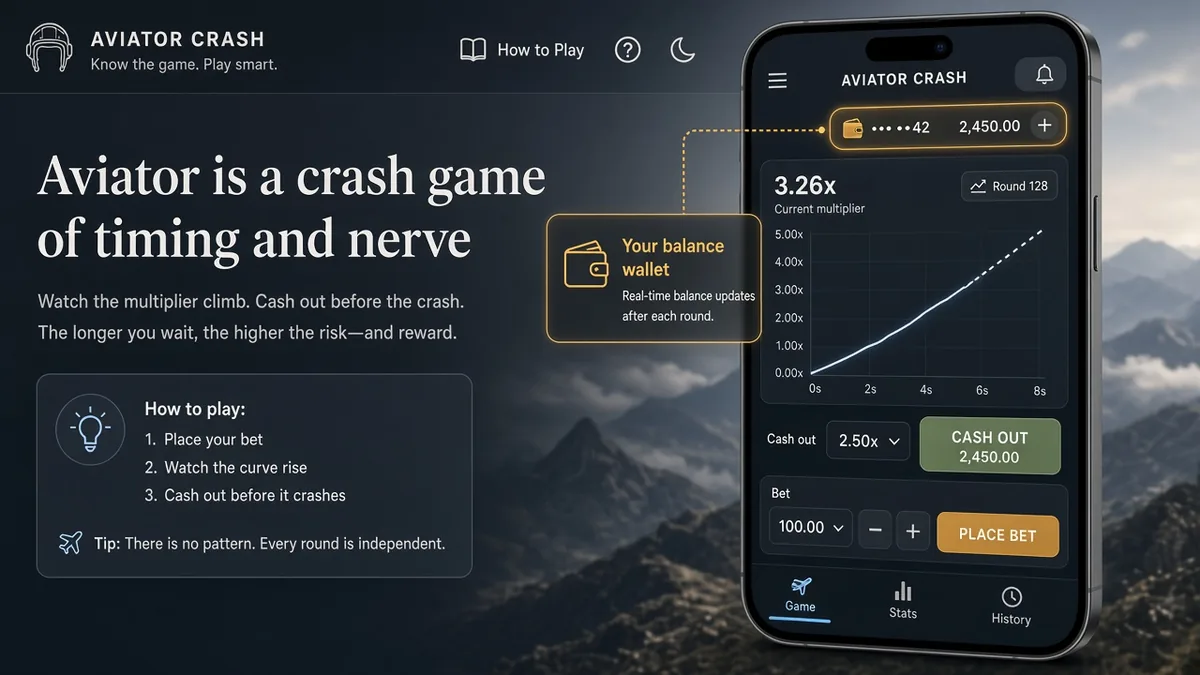
Search results for “Aviator balance screenshot”, “Aviator balance screen”, and “Aviator wallet screenshot” usually mean one practical job: see how much money is left in the live client, save it, and sometimes send it to support or a friend. That is a UI task. It is not a strategy system and not a shortcut into the next crash.
This page explains what the balance area is for, how to capture it cleanly, how to read the numbers, and where screenshots get misused as “proof”. We stay in the how-to lane. If you came looking for a magic tip tool, that is a different search — see the Aviator predictor for why those claims fail. Here the product is the balance line on your screen.
Short answer
An Aviator balance screenshot is a capture of the funds display inside a real casino’s Aviator (or demo) frame — usually the wallet or balance chip near the bet panels. It shows what the operator’s client says you have right now. It does not show tomorrow’s multiplier, and it is not an official Spribe document by itself. Operators layout the UI slightly differently; the job of the balance is the same: stake-aware money on that account.
Use this article when you need to track sessions, file a support ticket, or understand why a chat image is not the same as a fairness receipt. For round-by-round detail, pair it with how to check Aviator history when that control is available in your lobby.
What people are actually searching for
The phrase mixes a few honest jobs. Some players want to know where the balance sits so they do not lose track mid-round. Some need a snapshot for customer support after a deposit or withdrawal. Some want to compare demo funds with real-money play. A smaller group paste “balance screenshots” in chats as social proof that a tip “worked”.
Search engines do not split those intents. Sellers sometimes glue “balance screenshot” to predictor ads so a blurred wallet photo looks like evidence. Separate the jobs:
- “aviator balance screenshot”, “aviator balance screen”, “aviator wallet screenshot”;
- “how to screenshot aviator balance”, “aviator funds on screen”;
- “send balance screenshot to support”, “Aviator Log In demo balance”;
- chat flex posts that crop a balance next to a claimed win.
Wanting a clear view of your money is fair. Treating a cropped photo as a leak of the next Cash Out is a different claim — and this page will not sell that claim.
Where the balance lives in Aviator
Aviator is embedded in an operator lobby. The balance you see is almost always the casino wallet (or a game-scoped chip) for that login — not a separate “Aviator bank” invented by Spribe for screenshots. Exact placement varies by skin, but the pattern is familiar:
- Balance / wallet chip — current funds available for bets on that account.
- Bet panels — stake fields for one or two bets, often with Auto Cash Out nearby.
- Cash Out controls — the live decision for the current round.
- History / previous rounds — sometimes a strip or panel of past multipliers (operator-dependent).
The balance updates when you bet, Cash Out, lose a stake, or when the lobby refreshes after a deposit. A screenshot freezes one moment. It is a photograph of state, not a continuous feed. If the client was still loading, offline, or on a different account tab, the number can look “wrong” until you refresh the lobby.
On mobile webviews the chip can sit under a collapsed header or a bonus banner. Scroll until the balance and both bet panels are in frame before you capture. On desktop, widen the window so the cashier icon and Aviator frame are both visible if you need that context for support. The goal is a readable money line, not a full desktop wallpaper.
How to capture a clean balance screenshot
You do not need a special Aviator tool. Use the device’s normal screen capture, then crop to the balance and bet area so support can read it.
- Open Aviator in the same casino account you care about (or the Aviator Log In demo if you are only practicing).
- Wait until the balance chip and bet panels are fully visible — avoid mid-transition animations if you can.
- Capture the screen with your OS or phone shortcut (Print Screen / Snipping Tool on Windows; Shift-Command-4 on Mac; the usual side-button combo on phones).
- Crop tightly to balance + bet fields. Blur unrelated chat names if you will share the image.
- Save the file with date and operator name in the filename if you keep a session log.
If you are sending the image to support, include the operator URL or app name, the approximate time, and what you expected the balance to be. A lone PNG without context is hard to investigate.
How to read the numbers
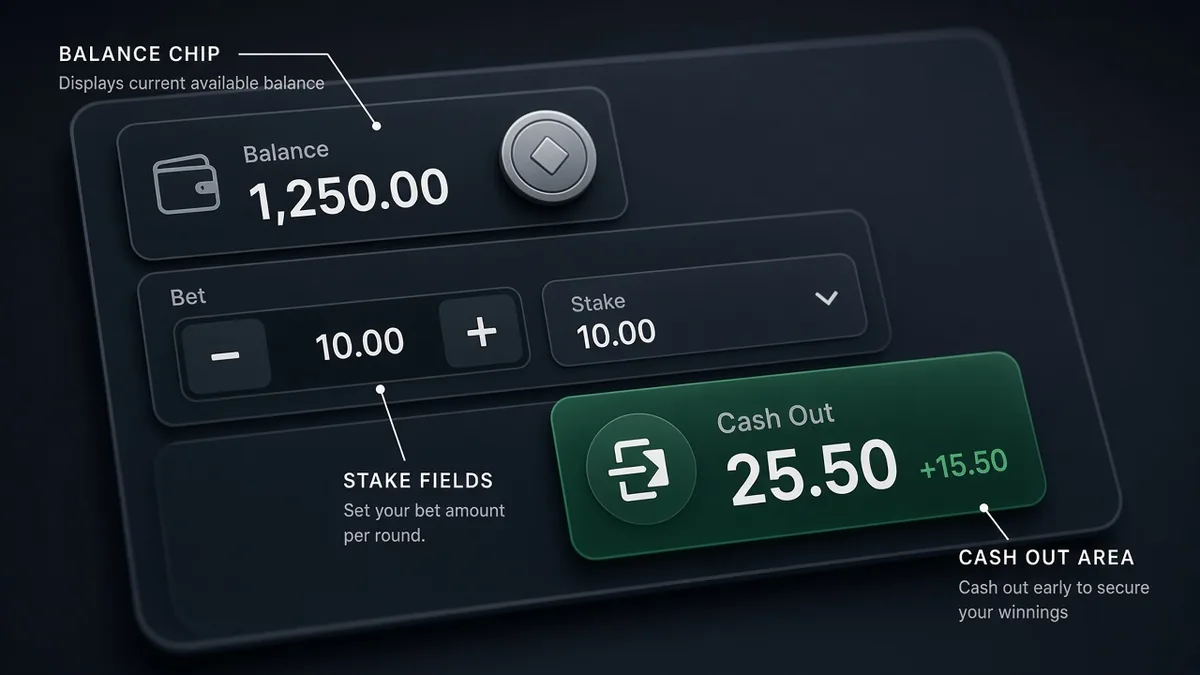
A useful Aviator balance screenshot usually contains more than one figure. Read them as a set:
- Balance — funds available before or after the round, depending when you captured. Compare it to what you deposited and withdrew in the casino cashier, not only to the last tip in a chat.
- Stake / bet amount — what you risked on the open panels. Two bets mean two stakes; the balance must cover both when you place them.
- Cash Out / Auto Cash Out — shows intent for that round, not a guarantee. Auto Cash Out is a client setting; it is not a predictor.
- Currency — confirm you are looking at the wallet currency you think you are (demo credits vs real money).
If the screenshot also shows a recent multiplier strip, treat that as history colour, not as a map of the next lift-off. Past rounds explain what already happened. They do not unlock the next seed. For a deeper pass on history controls, use how to check Aviator history.
When two bet panels are open, add the stakes mentally before you tap. A balance that “looks fine” can still reject a second bet if the first stake already reserved funds. Capture after the client confirms both bets, or after you cancel one, so the number matches the risk you think you are taking. That habit alone prevents a lot of confused support tickets that start with a misleading mid-click screenshot.
What a balance screenshot proves — and what it does not
Honesty note: chat groups love cropped wallet photos. A clear balance next to a big Cash Out can be a real win on that account. It can also be a demo wallet, an edited image, another player’s session, or an old capture. A screenshot is evidence of a displayed number at a moment in time. It is not a certificate that a tip service saw the crash early, and it is not Provably Fair verification by itself.
Use the table as a filter when someone waves a balance image as “proof”.
| What the image shows | What you can fairly conclude |
|---|---|
| Balance chip in a live casino Aviator frame | That account UI displayed that amount at capture time |
| Demo / practice credits labeled as such | Practice funds — not a real-money win |
| Stake fields and Cash Out buttons | How the player configured that round’s UI |
| Cropped balance with no operator chrome | Weak evidence — hard to verify context |
| Balance photo used to sell a tip channel | Marketing. Wins can be selected or staged |
| Balance after deposit / withdrawal | Useful for support — still not a fairness receipt |
If your goal is to verify a finished round, use the operator’s fairness / history tools when offered — not a blurry wallet crop in Telegram.
Privacy and support hygiene
Balance screenshots can leak more than you intend: account email crumbs, chat overlays, notification banners, or other open tabs. Before you post or send:
- Crop out unrelated notifications and personal identifiers.
- Do not share full account IDs, 2FA codes, or password managers in the frame.
- Prefer official support upload forms over random Discord DMs.
- Remember that once an image is on the internet, you do not control the copies.
We are an independent explainer. We are not your casino’s support desk and not Spribe. For account money issues, go to the operator that holds the wallet — start from a brand you chose on the casino list if you need a place to play, then use that site’s help centre.
How to check your own balance in 30 seconds
You do not need a third-party “balance tool”.
- Is Aviator fully loaded on the account you mean (real vs demo)?
- Does the balance currency match the cashier?
- Do open bet stakes still fit inside the displayed funds?
- After Cash Out or a loss, does the number move when the client refreshes?
- If something looks stuck, refresh the lobby or re-open the game before you escalate to support with a screenshot.
Curiosity about how the round feels is best answered in the Aviator Log In demo with virtual balance — same Cash Out habit, no deposit pressure.
What to do instead of collecting random “proof” screenshots
If you want to manage play, keep a simple session note: start balance, end balance, time window, operator. Screenshots help that log; they do not replace bankroll rules. Cap the session, treat demo as practice, and stop when the number is only going one way.
If you wanted a phone icon for the real web game, use real install routes. If you wanted a shortcut that “sees” the crash from a wallet photo, that product does not exist — the balance line reports money, not the next multiplier. Keep the how-to job and the predictor fantasy in separate drawers.
A steady routine beats a folder of random PNGs: one capture at session start, one at session end, optional mid-session shot only when something looks off. Name files with operator and date. That is enough for most disputes and enough for your own bankroll review — without turning screenshot collecting into a superstition.
FAQ
What is an Aviator balance screenshot?
A screen capture of the funds display (and usually the nearby bet panels) inside a casino’s Aviator client or demo. It freezes what the UI showed at that moment.
Where do I find the balance in Aviator?
Look for the wallet / balance chip near the bet panels in the operator’s skin. Placement varies by casino, but it is part of the live client — not a separate official Spribe “screenshot app”.
Does a balance screenshot prove a predictor works?
No. It can show that an account displayed a certain amount. It cannot prove that a tip saw the crash early. Selected wins, demo wallets, and edits are common in chat “proof”.
Should I send a balance screenshot to support?
Often yes, if the operator asks for it after a cashier issue — with time, account context, and a clean crop. Send it through official channels, not strangers who message you first.
Is demo balance the same as real money?
No. Demo credits are for practice. Label them clearly in your own notes so a demo screenshot is never mistaken for a real-money claim.
Why does my balance look wrong on the screenshot?
Common causes: capture during a refresh, wrong account, pending bets, currency mix-up, or an overlay from another app. Reload the lobby and capture again before escalating.
What should I use instead of hunting tip “proof” images?
Play or practice in the real UI, keep your own session log, and use fairness / history tools for finished rounds. The Aviator Log In demo is enough to learn Cash Out without treating screenshots as strategy.